CLIENT GUIDE / LET’S GET YOU ONLINE
Domain & Hosting Guide
Follow these 8 steps to buy your domain name (your web address, like yourbusiness.com) and your WordPress hosting (the place your website lives online). When you’re done, I’ll have everything I need to start building your website.
The store is called La Quiel.com: www.secureserver.net/?pl_id=601753
Have these ready
- An email address you check every day
- Your phone, in case the store texts you a code
- A debit card, credit card, or PayPal
- 2 or 3 ideas for your website name, in case your first pick is taken
Your checklist
0 of 8 doneCheck off each step as you go.
01 / Make your account
Create your account
Your account is like a locker. Everything you buy goes inside it, and only you have the key.
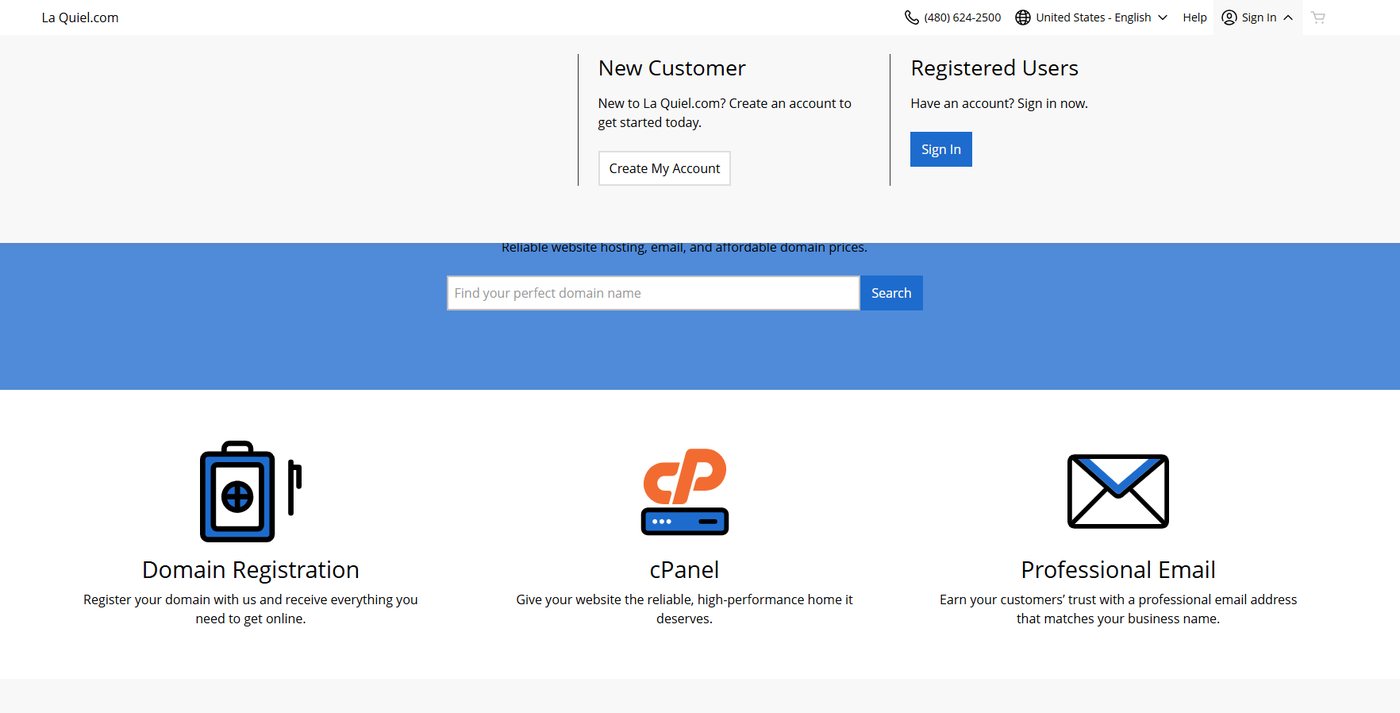
- Open the store with the Open the store button above. You’ll see La Quiel.com at the top.
- At the top right, click Sign In.
- Under New Customer, click Create My Account.
- Type your email, make a username, and make a strong password. Then finish signing up.
- Check your email for a message from the store. Click the link inside to verify your email.
Why verify?
If you skip it, you could get locked out of your account later.
Keep it safe
Write down your username and password somewhere safe. Never post them or text them to anyone, including me.
02 / Pick your web address
Find your domain name
Your domain is your website’s address. It’s what people type to find you, like yourbusiness.com.
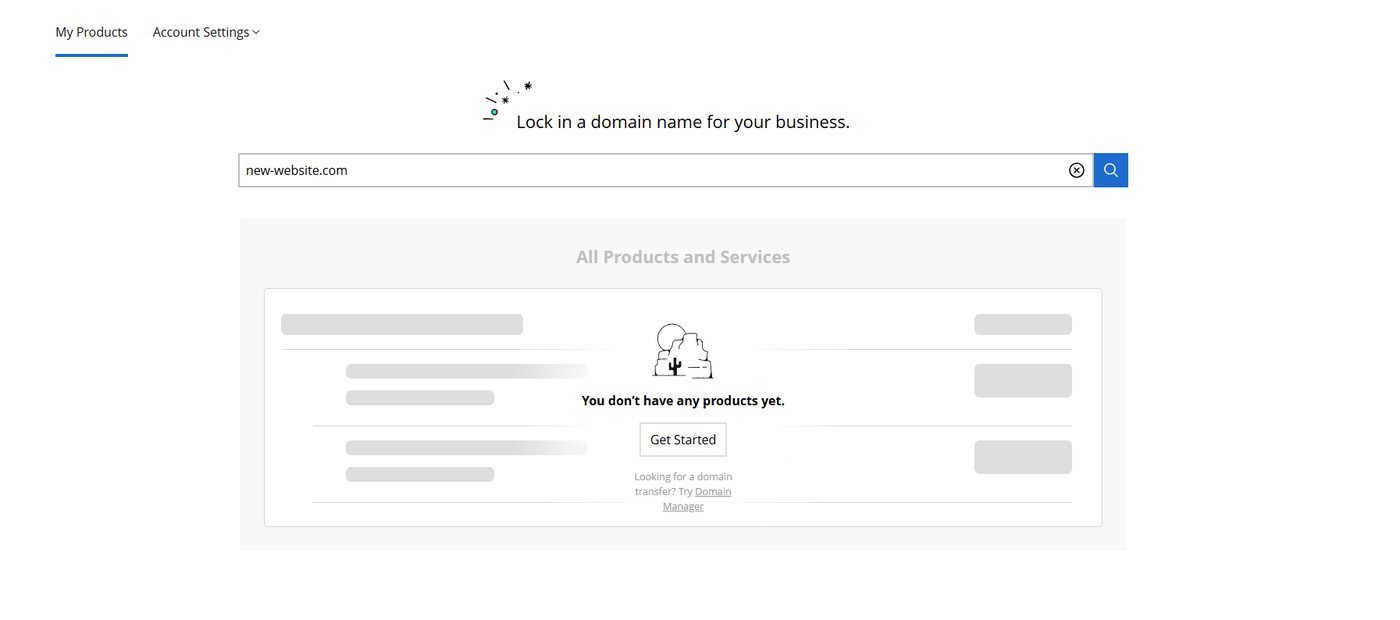
- Find the search box that says Find your perfect domain name (or Lock in a domain name for your business if you’re in your account).
- Type the name you want, like
yourbusinessname.com, and click Search. - If it says the name is taken, someone already owns it. Try one of your other ideas.
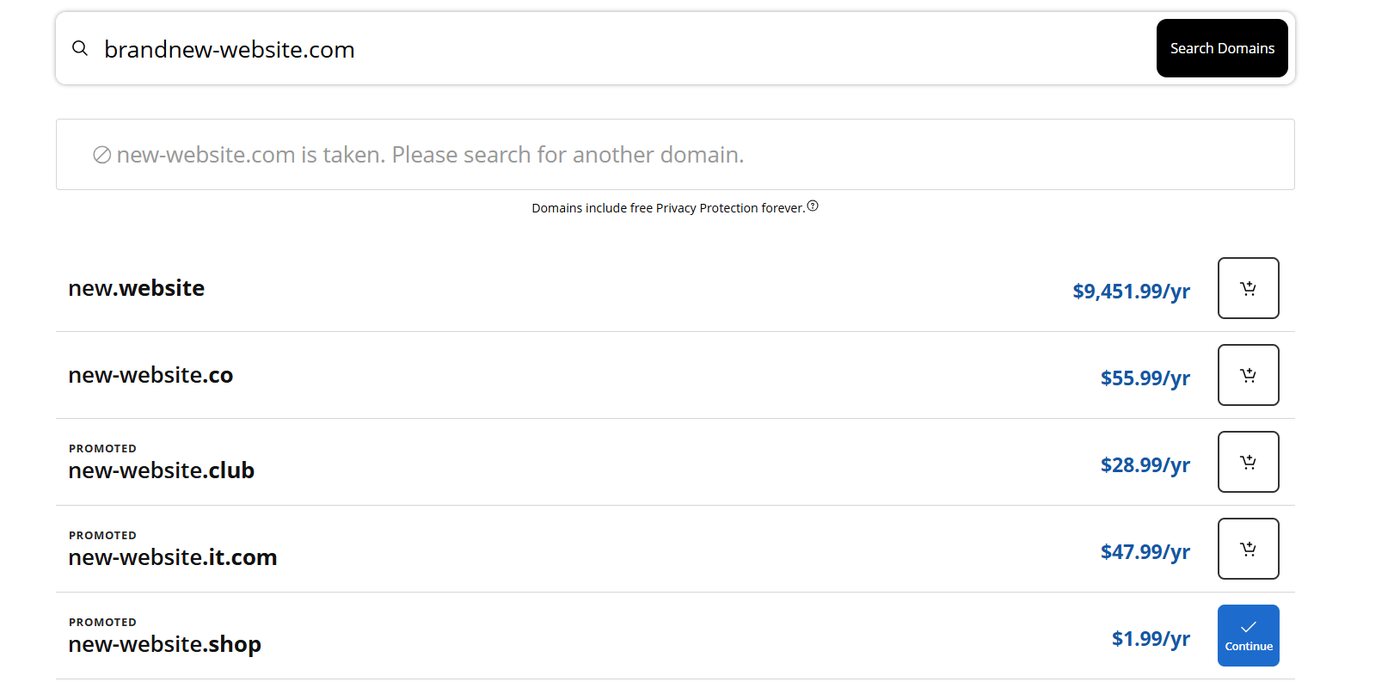
- When you find one that’s open, click the cart button next to it. It turns into a blue check that says Continue. Click it.
Pick .com if you can
It’s the one people trust and remember most. A new .com is about $23.99 a year in this guide’s October 2026 pricing.
Keep it short
If you have to spell it out loud, it’s too hard.
Watch out for super-cheap endings
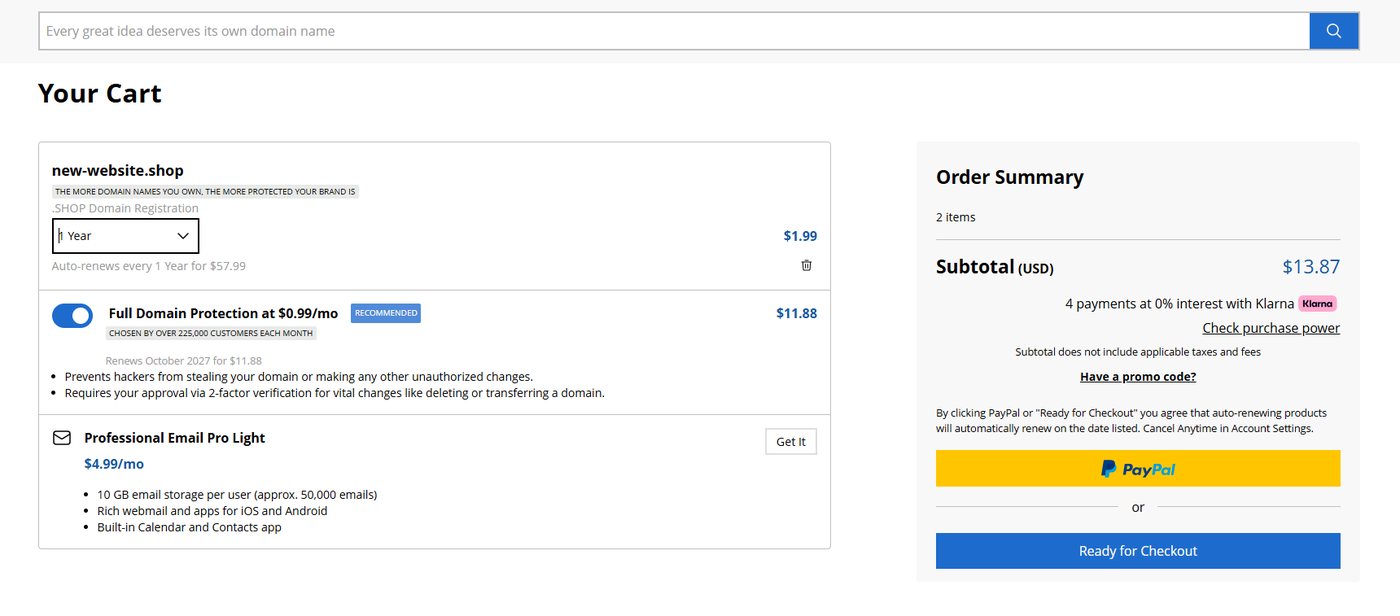
Some, like .shop, cost $1.99 the first year but jump to $57.99 every year after. Look for the small gray words that say Auto-renews every 1 Year for… to see the real price. Skip the “premium” names too. Some cost thousands of dollars a year.
03 / Lock the door
Add Full Domain Protection
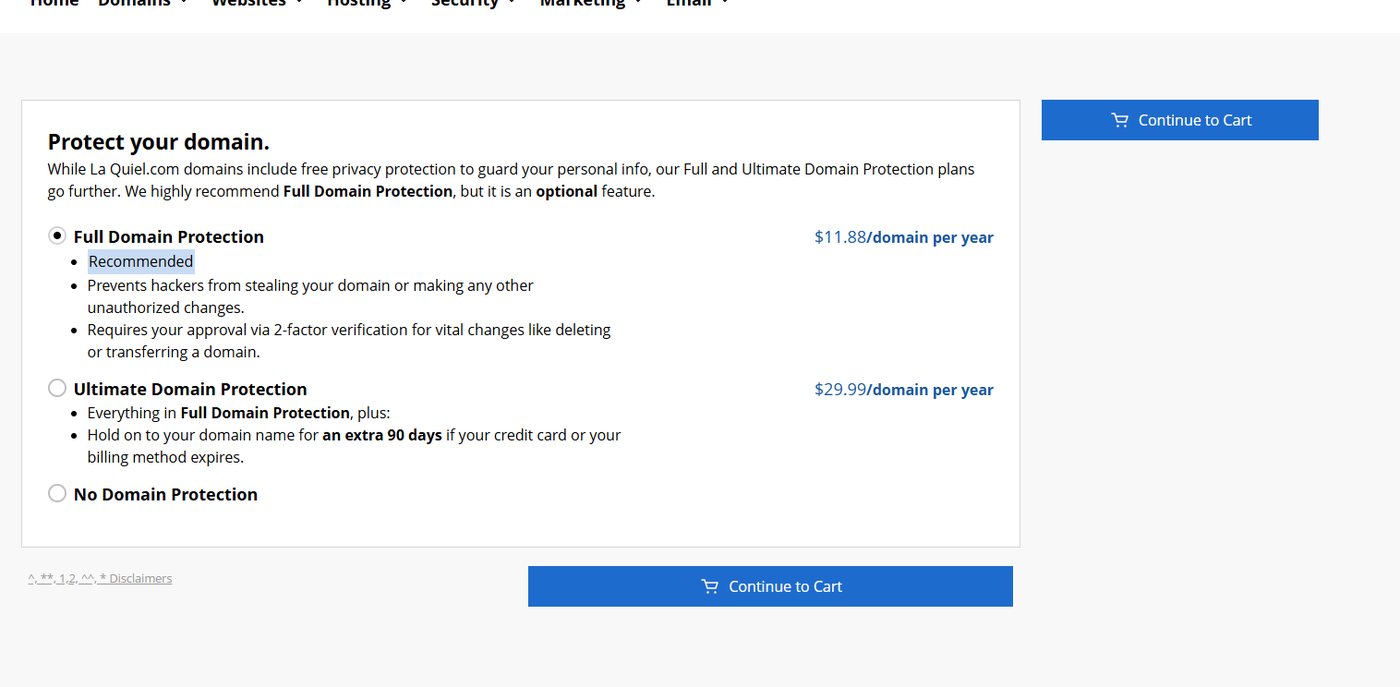
Next you’ll see a page called Protect your domain. I recommend protecting it. Think of it like a lock on your front door.
- Click the circle next to Full Domain Protection ($11.88 a year in this guide, about $1 a month).
- Click Continue to Cart.
Why it matters
It adds protection against someone stealing your domain or making unauthorized changes. If anyone tries to delete or move your domain, the store asks you to approve it first with a code.
Skip the others
You don’t need Ultimate Domain Protection. Don’t pick No Domain Protection.
04 / How long to own it
Pick how many years
You’re now in Your Cart. Under your domain name there’s a box that says 1 Year.
- Click the 1 Year box.
- Pick how long you want to own your domain:
- 1 year is the least you can buy.
- 3 years is what I recommend if you’re serious about your business. You won’t have to think about renewing for a long time.
Remember your number
Whatever number of years you pick here, you’ll pick the same number of years for hosting in Step 5. If you buy your domain for 3 years, buy 3 years of hosting too.
Good to know
Your domain is set to auto-renew. The store renews it for you each time, as long as the card on your account still works.
05 / A home for your site
Add WordPress hosting
Hosting is the land your website’s house is built on. Without it, your website has nowhere to live.
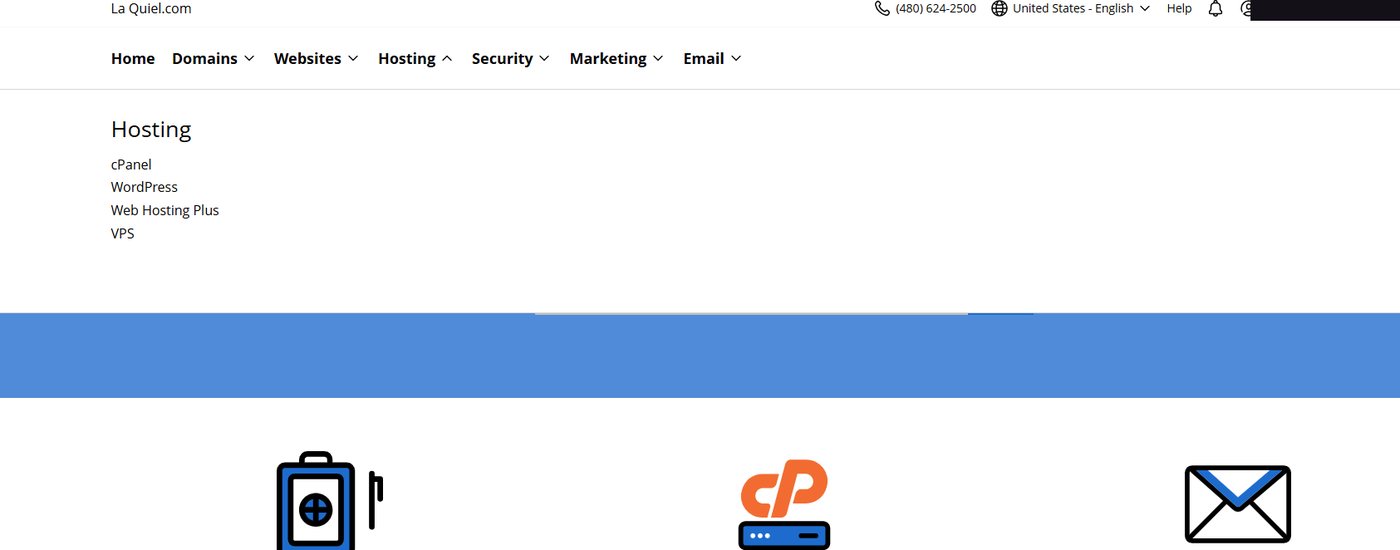
- At the top of the page, click Hosting, then click WordPress.
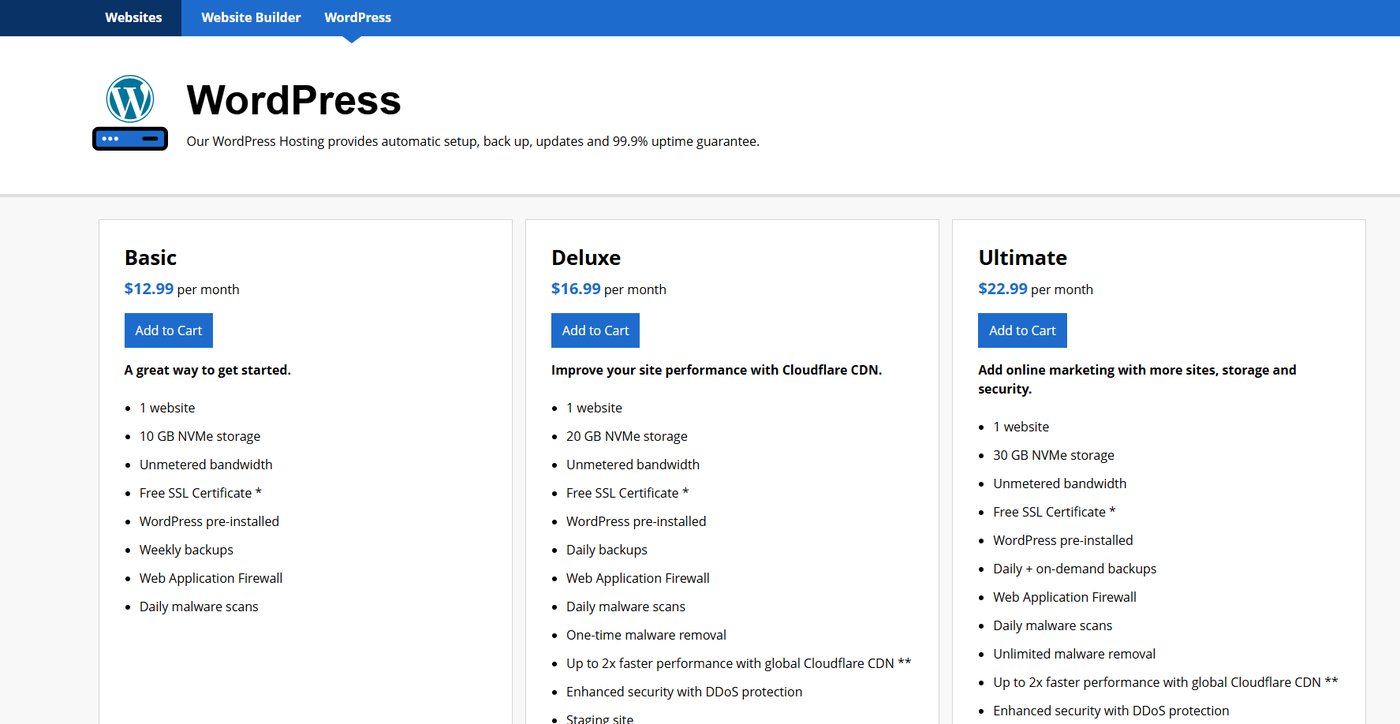
- You’ll see 3 plans: Basic, Deluxe, and Ultimate.
- Under Basic ($12.99 a month in this guide), click Add to Cart.
- In your cart, click the hosting box and match it to your domain:
- Domain for 1 year → pick 12 Months
- Domain for 3 years → pick 36 Months
Match your years
Your domain is the address and hosting is the house. If the hosting runs out before the domain does, your website goes offline, even though you still own the address. Keeping them the same length keeps their renewal dates together.
Don’t pick month to month
The free SSL lock in this guide’s plan only comes with a yearly plan. If you don’t see the length that matches your domain, pick the closest one and tell me.
Why WordPress hosting?
My website templates are built with WordPress. This hosting comes with WordPress already installed, plus backups and daily virus scans.
Why the SSL matters
The plan includes a free SSL certificate. That’s the little lock next to your web address. It protects information sent between your customers and your website, like names, emails, and payments. Without it, browsers warn visitors that your site is “Not Secure.”
Why Basic?
It’s all you need to start. If your site grows and needs more room, the plan is easy to upgrade later. You won’t lose anything.
06 / Double-check
Check your cart
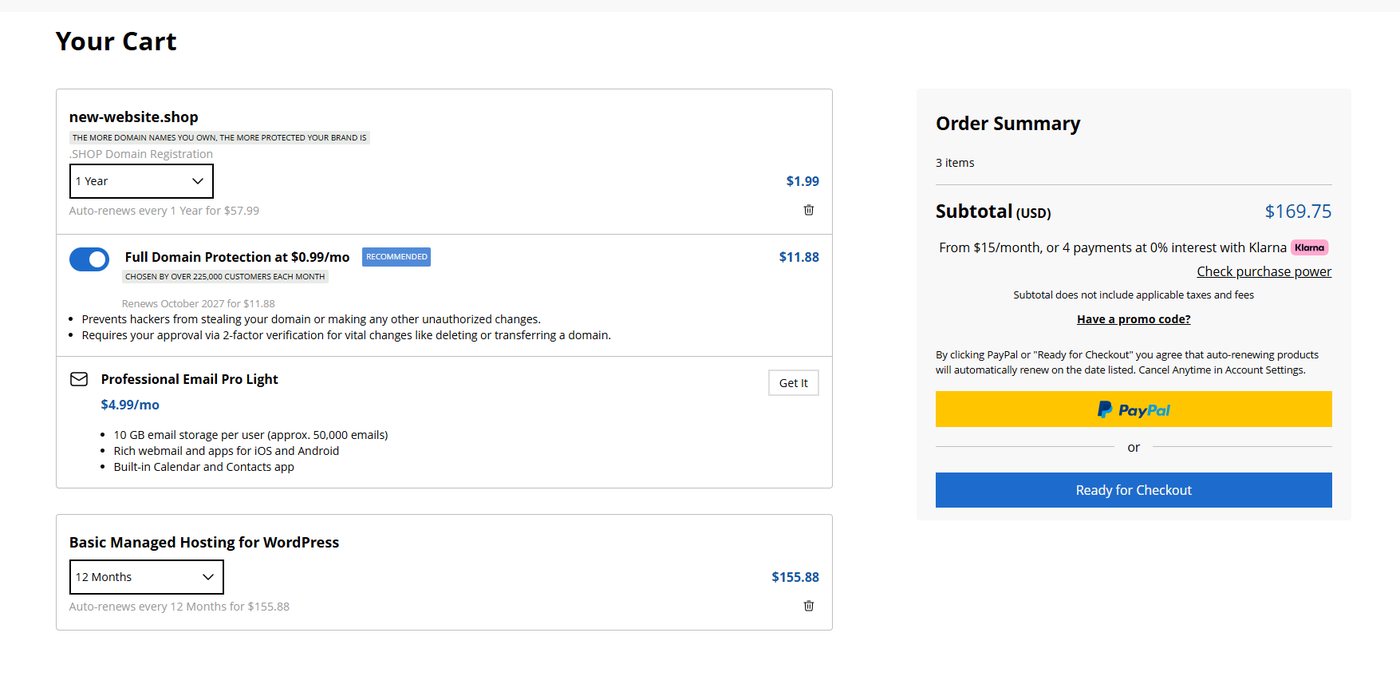
Click the cart icon at the top right. You should see 3 items:
| In your cart | What to check | About how much |
|---|---|---|
| Your domain (like yourbusiness.com) | Says 3 Years (or at least 1 Year) | $23.99 / yr (.com) |
| Full Domain Protection | Switch is on (blue) | $11.88 / yr |
| Basic Managed Hosting for WordPress | Same length as your domain (36 Months for 3 years) | $155.88 / yr |
1 year of everything
≈ $192
.com domain, protection, and hosting
My pick: 3 years of everything
≈ $575
Domain, protection, and hosting all for 3 years
These are estimates from the original guide, using October 2026 prices. Your cart shows the real total, and taxes and a small domain fee get added at checkout.
Skip the extras
You’ll see offers like Professional Email Pro Light. You don’t need it right now, so don’t click Get It. We can add email later if you want it.
07 / Make it yours
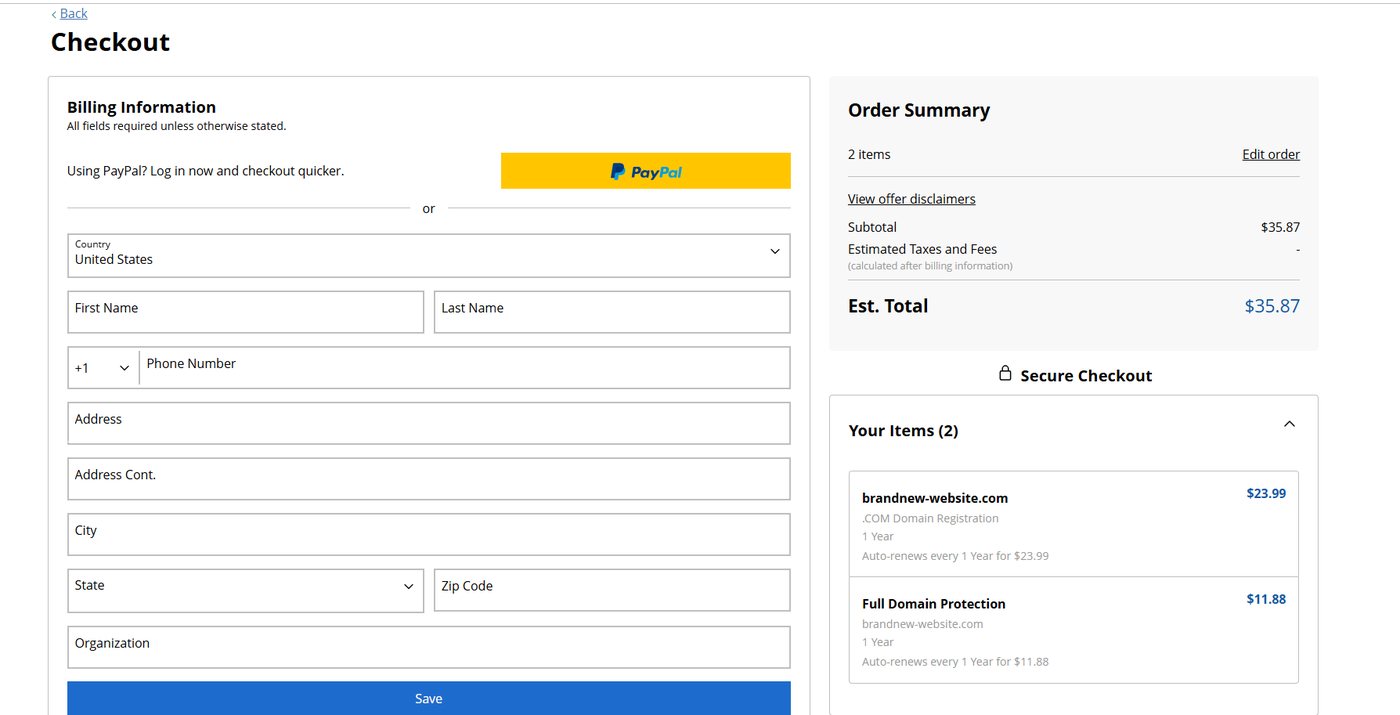
Check out and pay
- In your cart, click Ready for Checkout. Or click the yellow PayPal button to pay with PayPal.
- Fill in your Billing Information: name, phone, and address. Use your real info. This is who legally owns the domain.
- Click Save.
- Enter your card info and finish paying.
- Look for a thank-you page and an email receipt. Keep the receipt.
Good to know
Everything you bought is set to auto-renew, which helps your site stay online. Keep your payment details current. You can change auto-renew anytime in Account Settings.
08 / Hand me the keys
Give me access
This lets me build your website without you ever sharing your password. You still own everything.
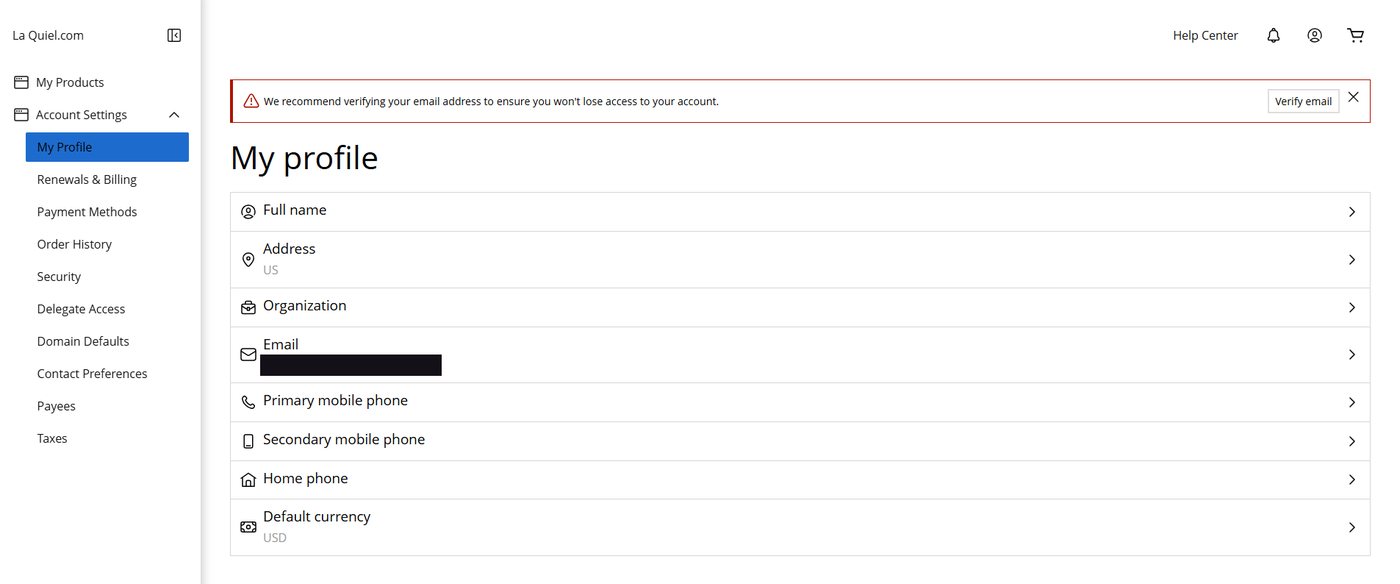
- Sign in and click the person icon at the top right.
- Go to Account Settings, then Delegate Access.
- Click to invite someone. Type my email: laquielratliff@gmail.com.
- Pick the access level that lets me manage your products and domains. Then send the invite.
You did it ✦
Send me a message
Email me at laquielratliff@gmail.com with these 3 things:
- Your domain name (like yourbusiness.com)
- The email you used to make your account
- “I sent the Delegate Access invite”
That’s it! Once I hear from you, I’ll start building your website.
Quick help
The name I want is taken. What now?
Add a word like your city or what you do. For example, smithcleaning.com could become smithcleaningaz.com.
I clicked the wrong thing.
No problem. In your cart, click the trash can next to anything you don’t want.
Do my domain and hosting need to be the same length?
Yes. If your hosting ends before your domain, your website goes offline. Buy the same number of years for both, like 3 years and 36 months.
My cart says 2 items, not 3.
You probably haven’t added hosting yet. Go back to Step 5.
Why is my domain so cheap?
Check the gray “Auto-renews” words. A $1.99 domain might cost $57.99 next year. A .com is the safer pick.
I’m stuck on the store’s website.
Call the store’s help line any time at (480) 624-2500, or reach out to me.
LQ ✦ LA QUIEL · Prices as of October 2026 · Taxes and fees not included. Store screens, prices, and plan details may change; review the current cart before paying.